Sample app tour

A screen-by-screen tour of the sample admin app that ships with SQLly Embedded: status and licensing, profiles and connections, labels, users, and launching SQLly.

The package includes a small admin app (sample-app/, Node.js 20+, no dependencies) that exercises everything SQLly Embedded can do. It plays the part of your app: an admin side for profiles, labels and users, and a user side that signs people in and opens SQLly. Every screen below is a thin layer over one or two management API calls, which are named under each screenshot so you can see what your own app would call.

These screenshots come from a real bridge linked to a trial license, with a SQL Server Northwind database behind it.

Admin sign-in
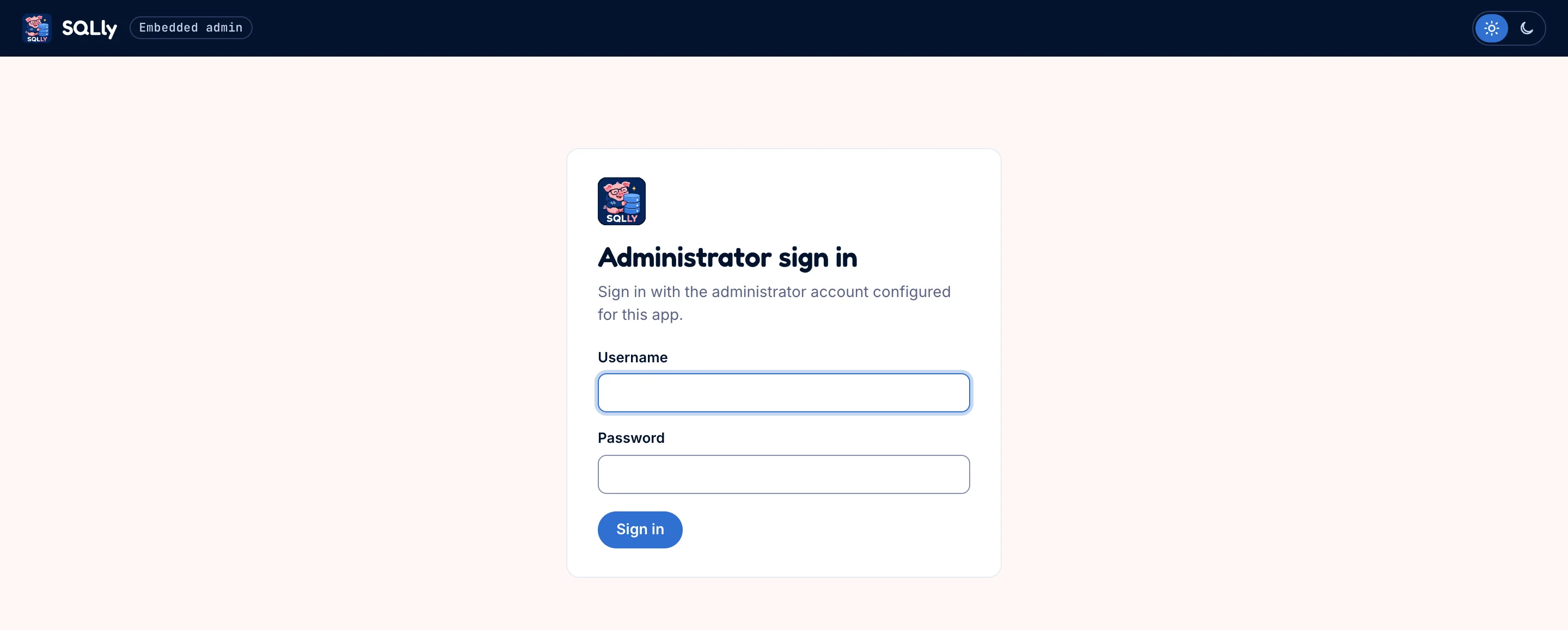
The sample app's Administrator sign in card with username and password fields
The admin side lives at /admin. The default account is sqlly-admin / GoodLittlePiggy, and the app refuses to listen beyond loopback until you change it in sample-app/config.json.

Status and licensing

Status is GET /manage/status rendered as a page. A bridge started without a key or license file is unlicensed: you can already build and test profiles, but SQLly won't launch until the install is linked.
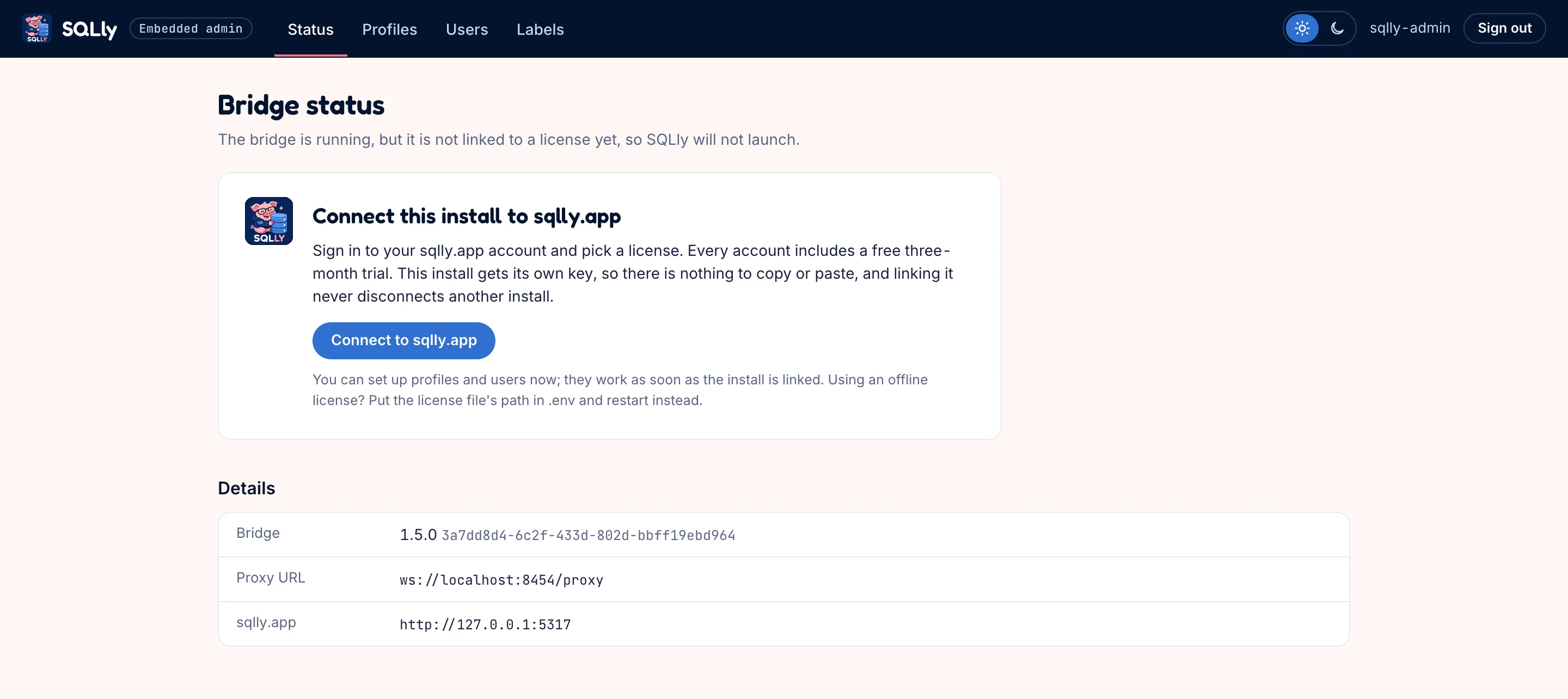
Bridge status page saying the bridge is running but not linked to a license, with a Connect to sqlly.app button
Unlicensed: the Connect this install to sqlly.app card starts the link flow.

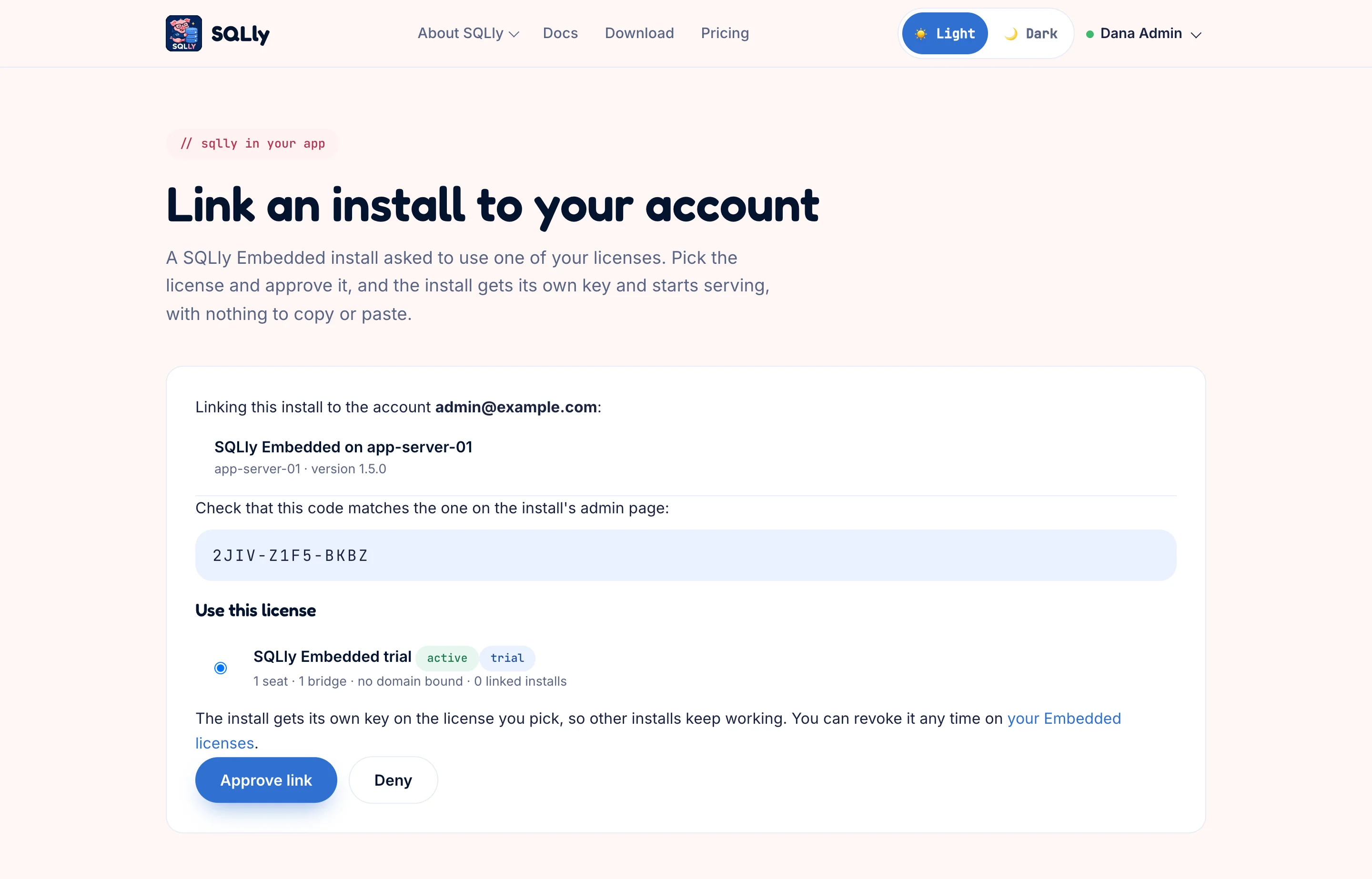
Connect to sqlly.app asks sqlly.app for a link code (POST /api/embedded/links) and shows it. Open sqlly.app to approve takes the license owner to sqlly.app, where they confirm the same code and pick a license:
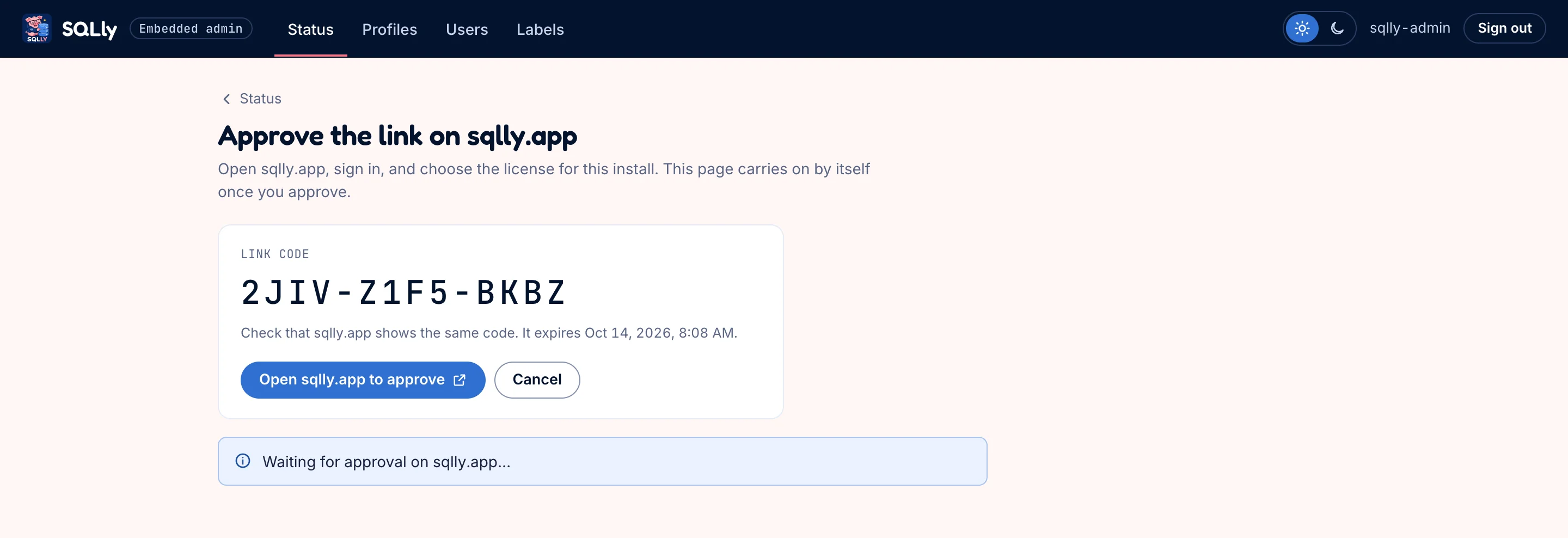
The sample app showing a large link code with an Open sqlly.app to approve button, waiting for approval
The admin app shows the code and polls sqlly.app in the background (POST /api/embedded/links/token).
The sqlly.app page Link an install to your account, showing the install name, the matching code, and the trial license selected, with Approve link and Deny buttons
On sqlly.app the owner sees which install is asking, checks the code, picks a license and approves. Each linked install gets its own key, revocable from the owner's Embedded page.

Seconds later the admin app collects the install's key, hands it to the bridge with PUT /manage/license, and Status shows the license:
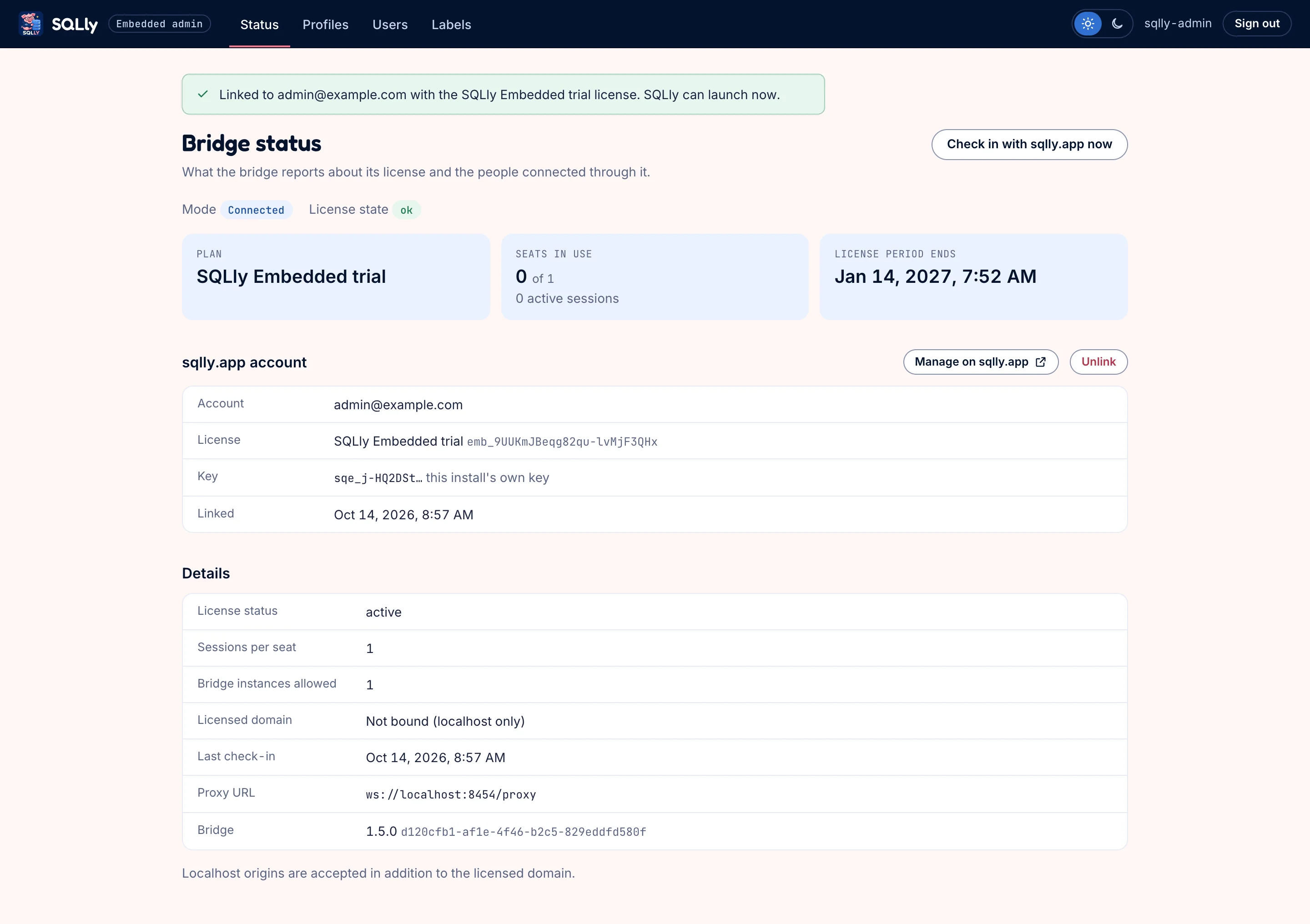
Bridge status page for a linked install: Connected mode, license state ok, SQLly Embedded trial plan, 0 of 1 seats in use, the linked sqlly.app account, and license details
Linked: plan, seats in use, period end, the account it's linked to (with Manage on sqlly.app and Unlink), and the details the bridge reports. Check in with sqlly.app now calls POST /manage/license/checkin.

Profiles

A profile is the set of connections a group of users sees. The list shows each profile's connections and who is assigned to it, with Launch to open SQLly as yourself with that profile.
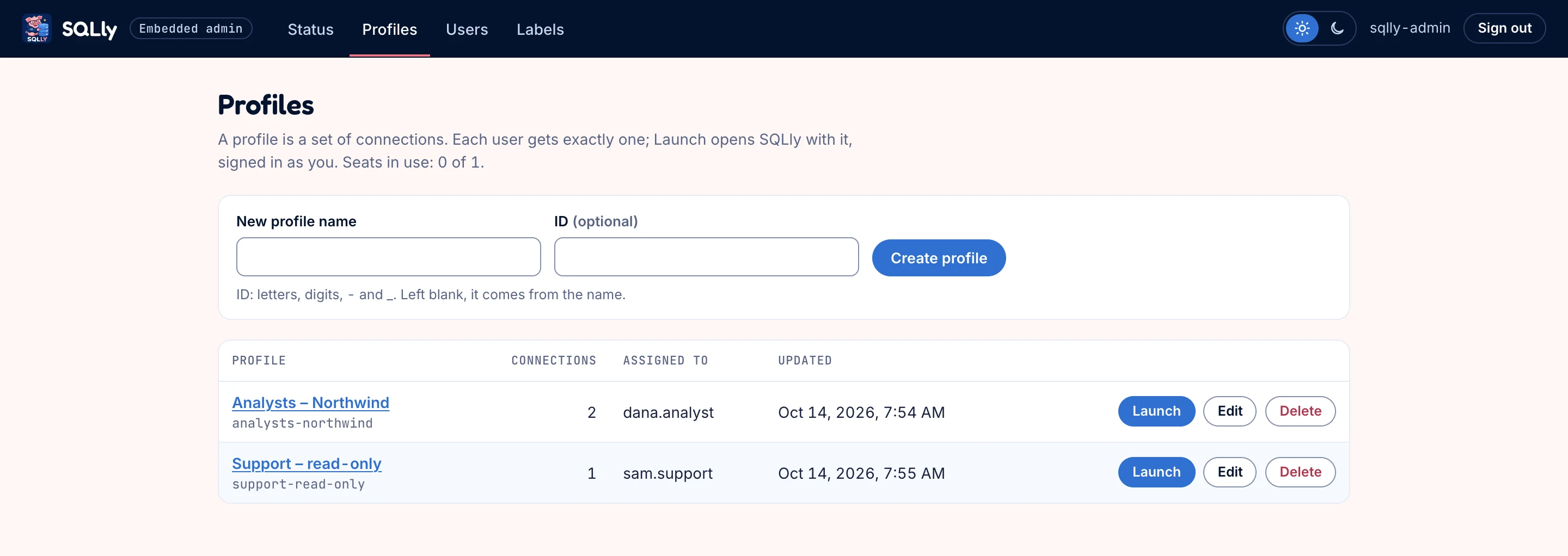
Profiles list with a create row and two profiles, Analysts – Northwind and Support – read-only, each with Launch, Edit and Delete
Creating a profile is PUT /manage/profiles/{id} with an empty credential document; the bridge stores it and validates every later change.
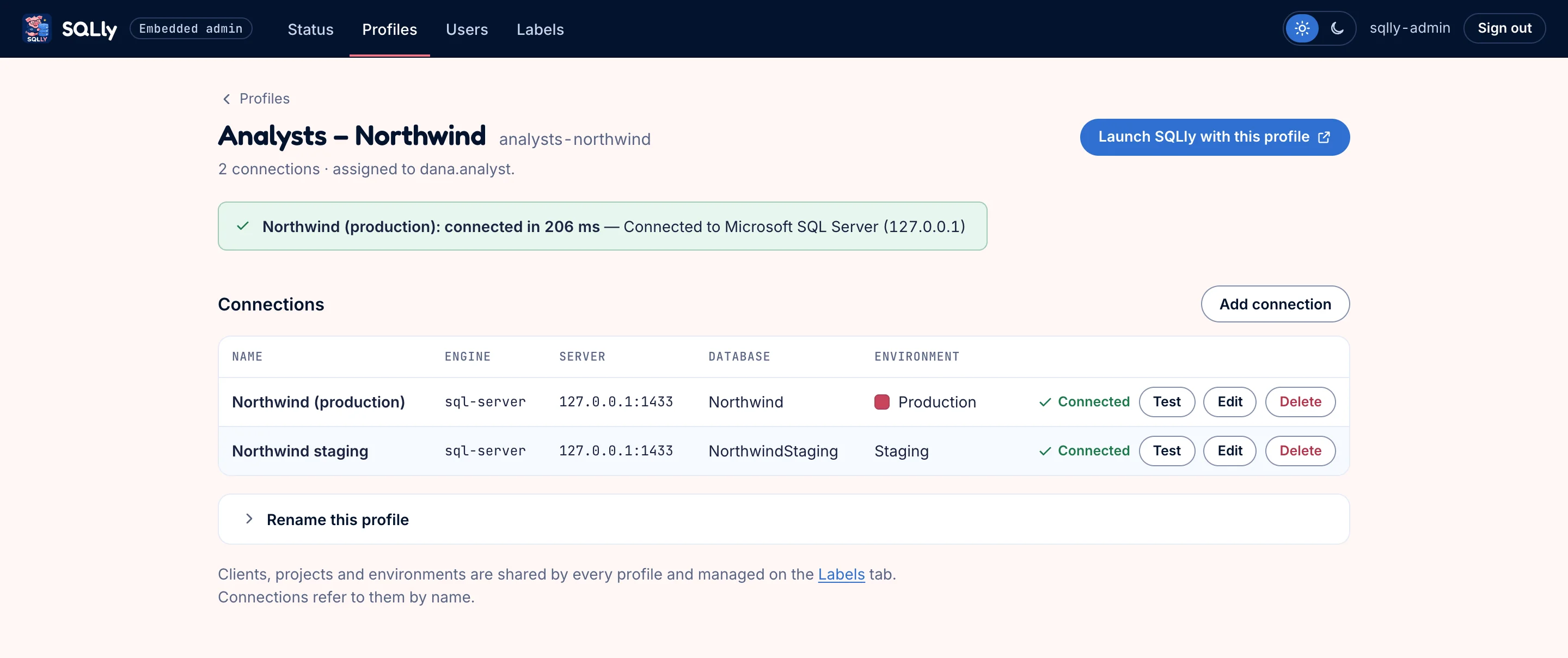
The Analysts – Northwind profile page with a green connection test result and a table of two SQL Server connections, each marked Connected with Test, Edit and Delete buttons
A profile's connections, each tested in place. Test runs POST /manage/test-connection with a document holding just that connection; Launch SQLly with this profile mints a token for the admin.

Editing a connection

The connection editor offers every field the credential format supports for the chosen engine. The engine list and each engine's sign-in types come from GET /manage/engines. Test checks whatever is on the form, saved or not, and shows the engine's own answer inline:
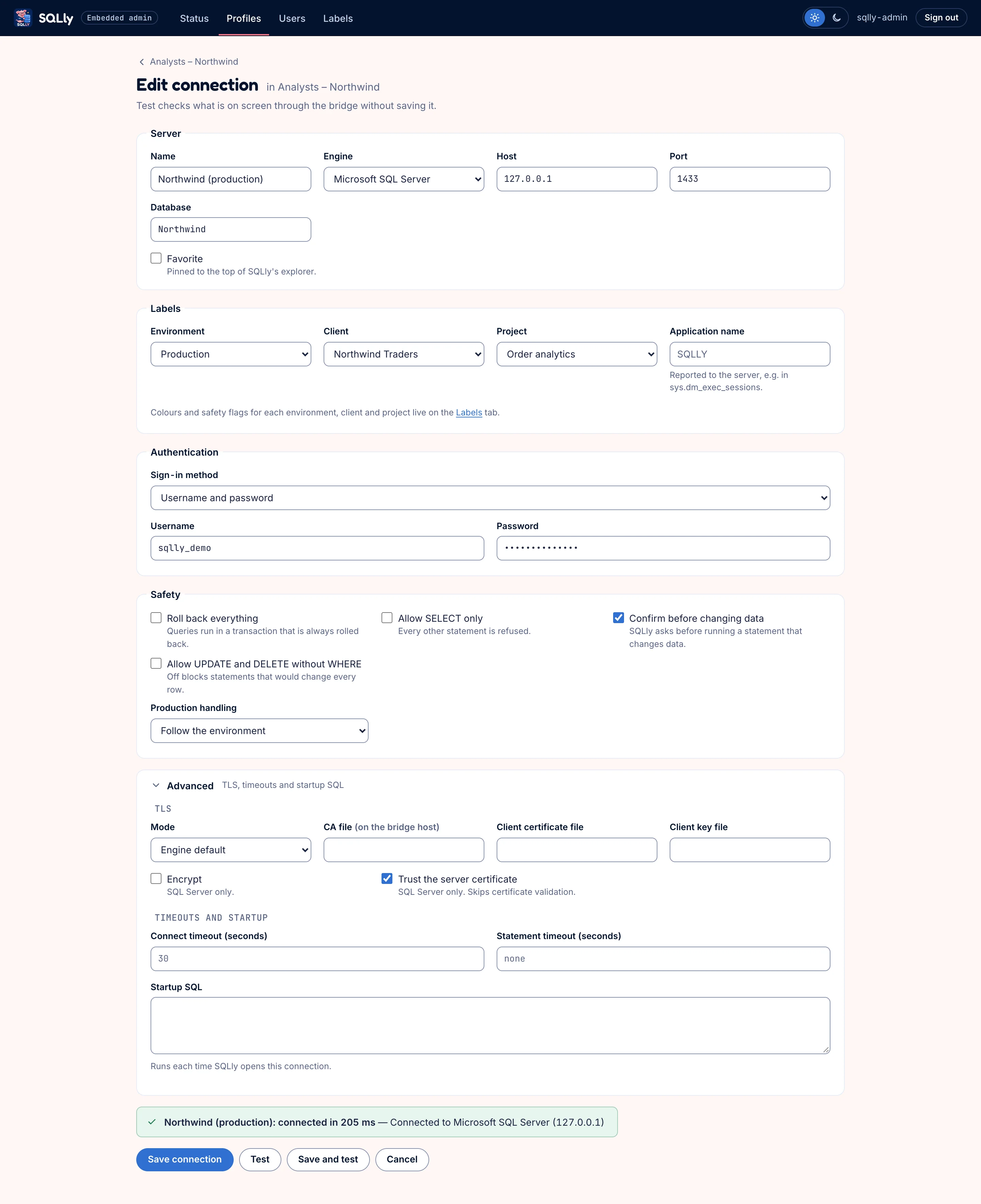
The connection editor for a SQL Server connection with server, database, labels, a masked password, safety and TLS options, and a green Test result above the Save connection, Test, Save and test, and Cancel buttons
Server, labels (environment, client, project), authentication, safety rules and TLS. Passwords stay on your server: the bridge stores them and the browser never receives them.

Labels

Clients, projects and environments colour and group connections in SQLly, and carry safety rules. The sample app keeps one shared set and sends it with every profile, so renaming a label updates every connection that uses it.
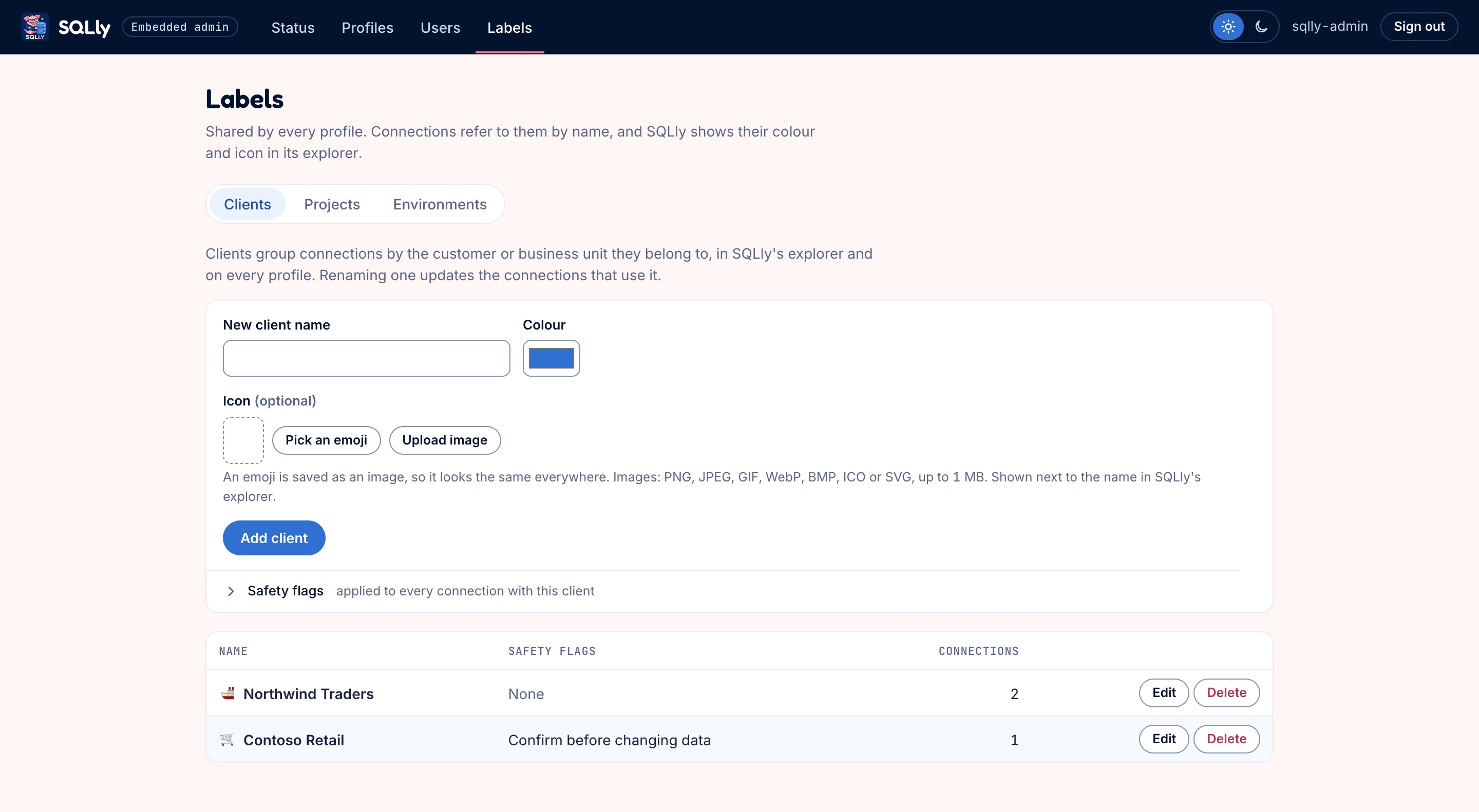
Labels page on the Clients tab with a form to add a client with colour, emoji or image icon and safety flags, and two clients listed with icons and connection counts
Clients and projects get a colour, an icon (an emoji is saved as an image, or upload one) and optional safety flags.
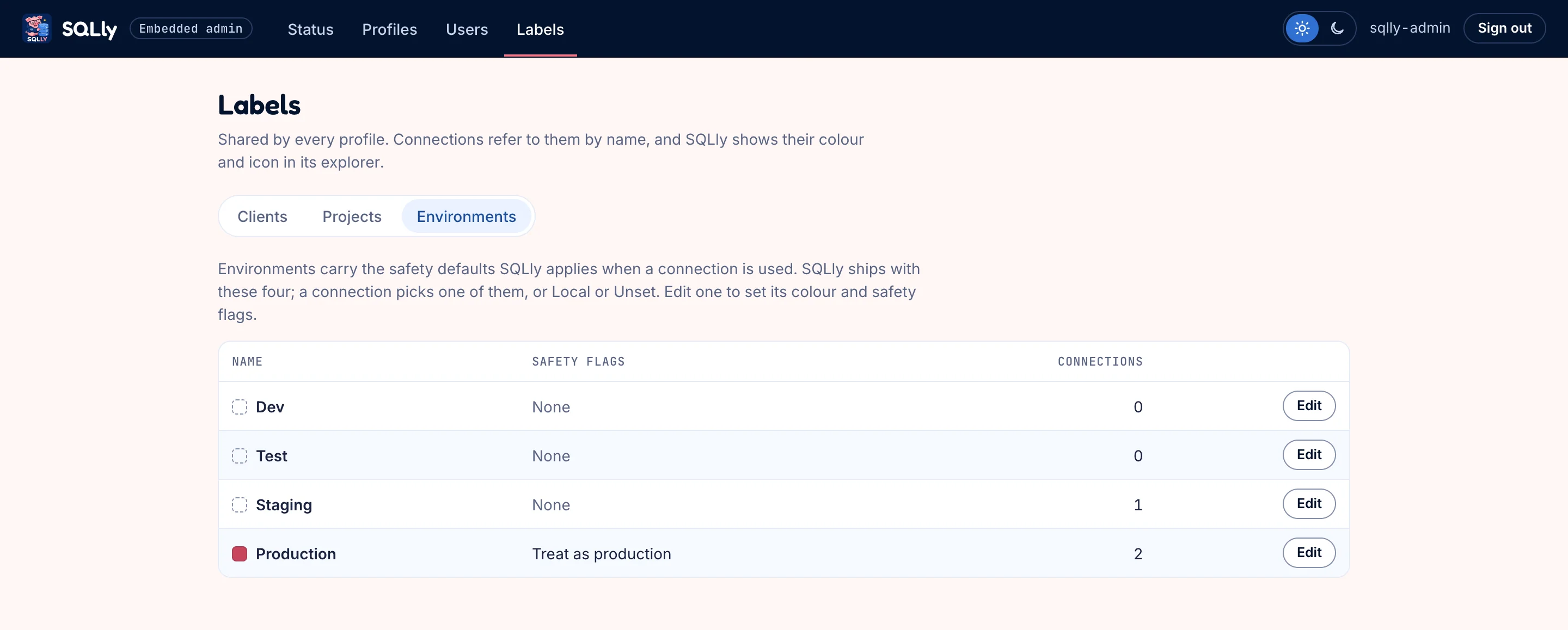
Labels page on the Environments tab listing Dev, Test, Staging and Production, with Production marked Treat as production
SQLly's four environments. Production is flagged as production, so SQLly shows the read-only bar and asks before changes.
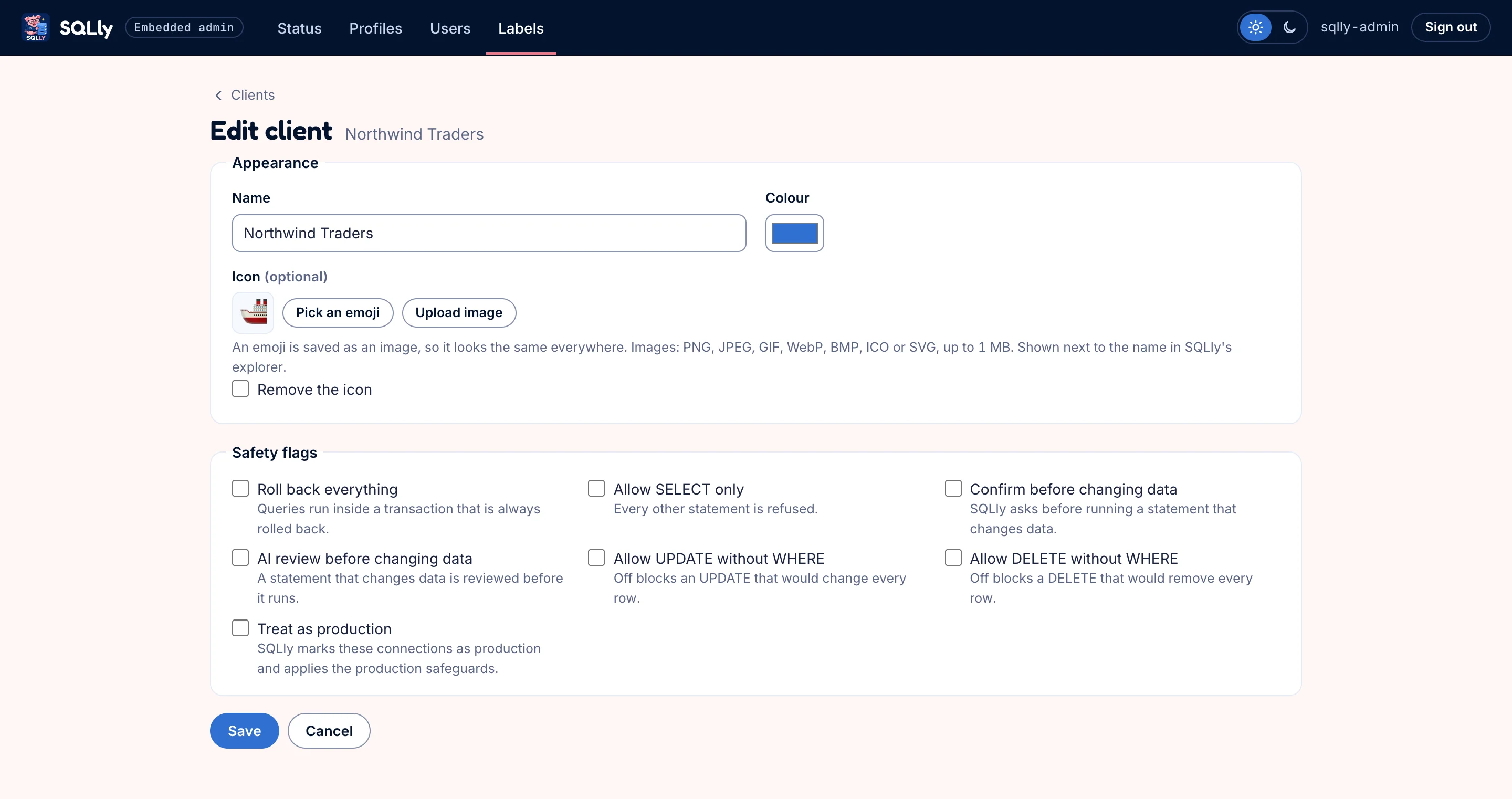
Edit client form for Northwind Traders with name, colour, emoji icon and the full list of safety flag checkboxes
Every safety flag the credential format supports, such as only allowing SELECT or confirming data changes, enforced by SQLly for everyone who opens a profile using the label.

Users and seats

The sample app's users are its own accounts, each assigned one profile. In your app, users and their access are whatever you already have. The page also shows who holds a seat right now (GET /manage/seats), with Release seat (DELETE /manage/seats/{user}).
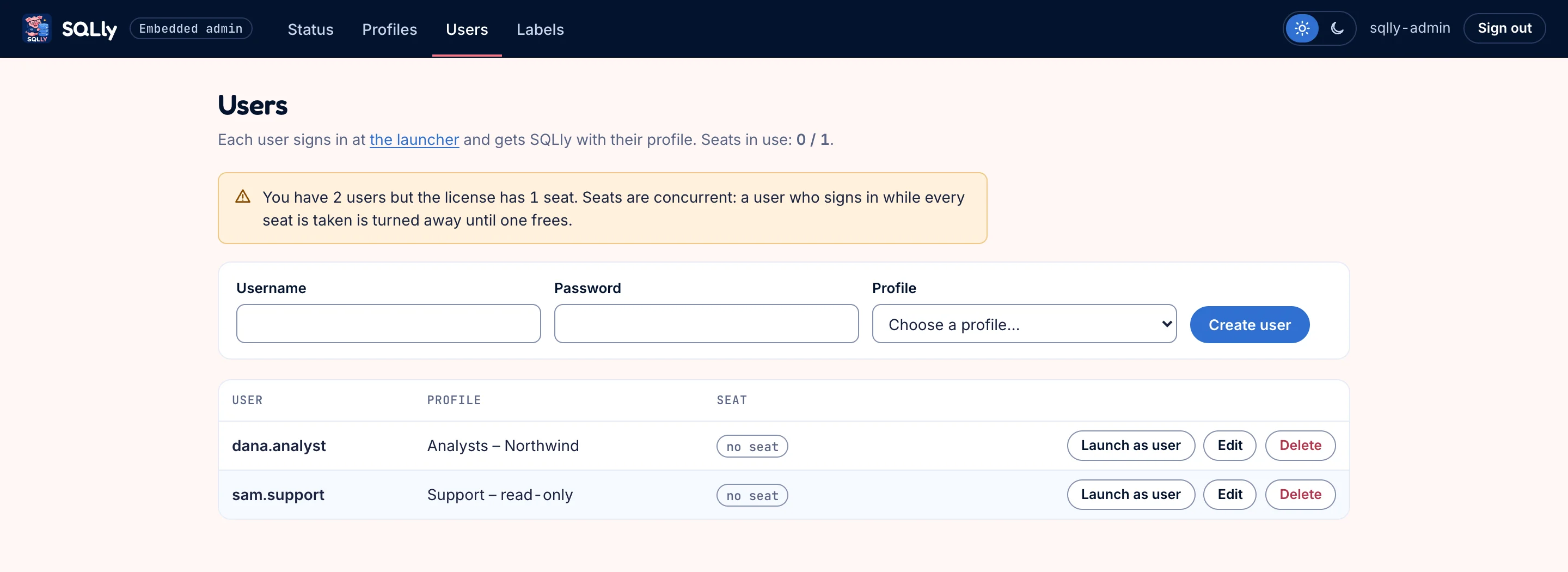
Users page showing seats in use 1 of 1, a warning that two users exceed the one-seat trial, a create row, and two users, one holding a seat with a Release seat button
dana.analyst holds the trial's only seat while SQLly is open; sam.support would be refused with seat_limit until it frees. Launch as user opens SQLly exactly as that user sees it.
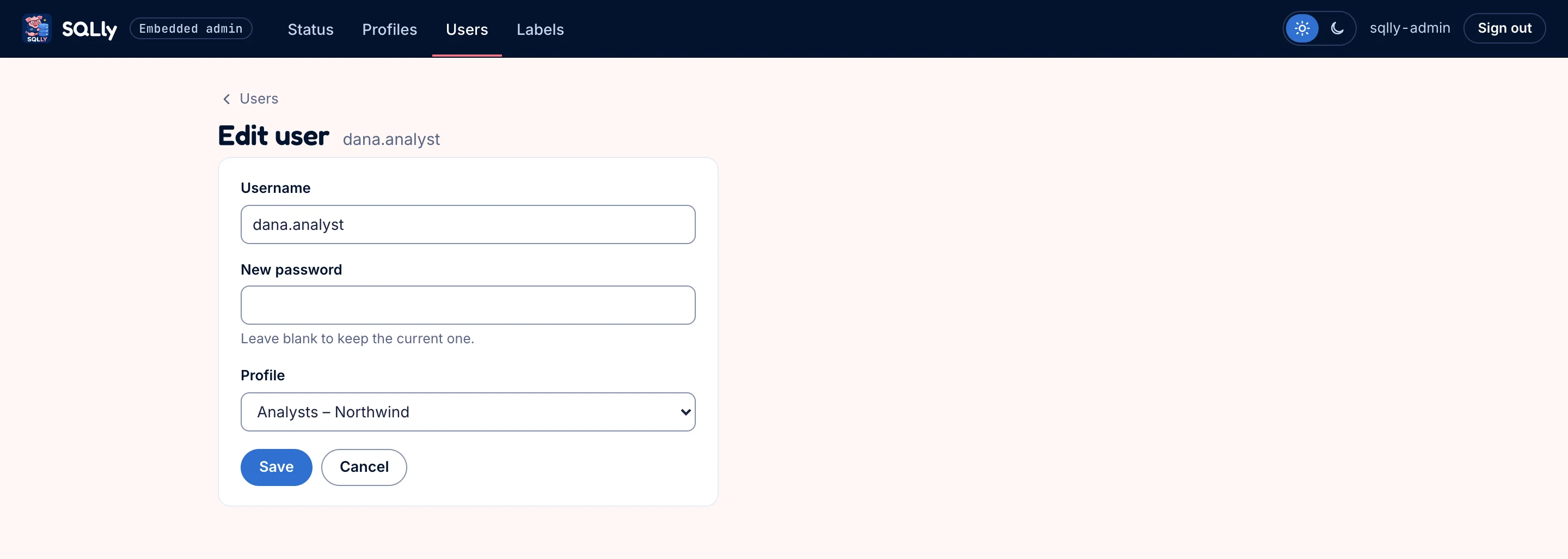
Edit user form for dana.analyst with username, new password and profile fields
A user is a username, a password (scrypt-hashed in sample-app/data) and a profile.

What your users see

Users sign in at the app's root, not under /admin:
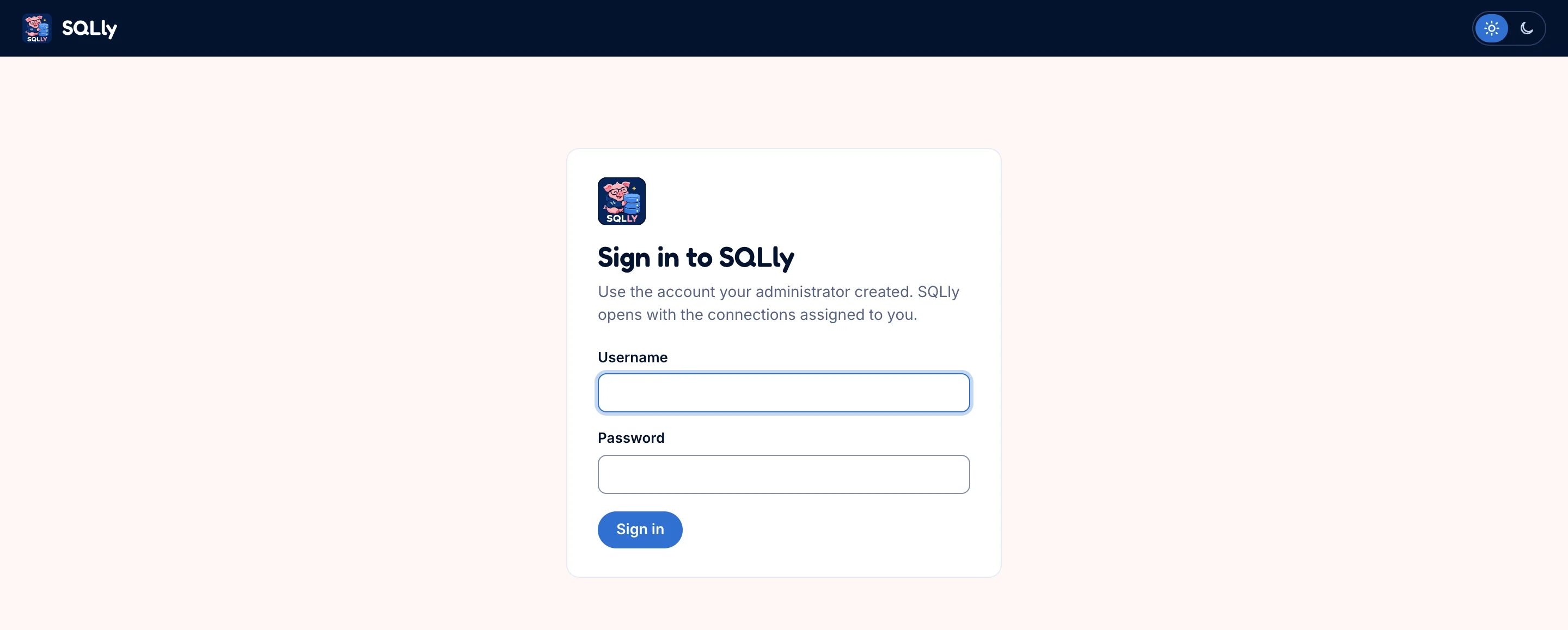
The end-user Sign in to SQLly card
The user side of the sample app. In your product, this is your existing sign-in.
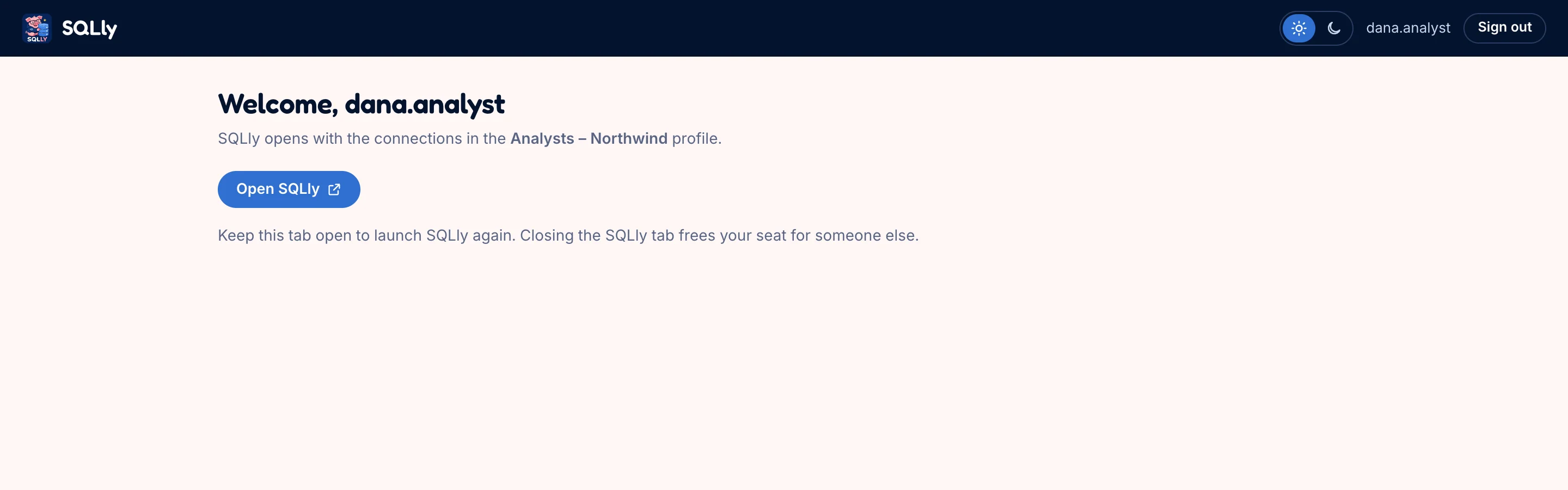
Welcome page for dana.analyst naming the Analysts – Northwind profile with an Open SQLly button
Open SQLly goes to /app/, which mints a launch token (POST /manage/tokens) and serves SQLly with it. Closing the SQLly tab frees the seat.
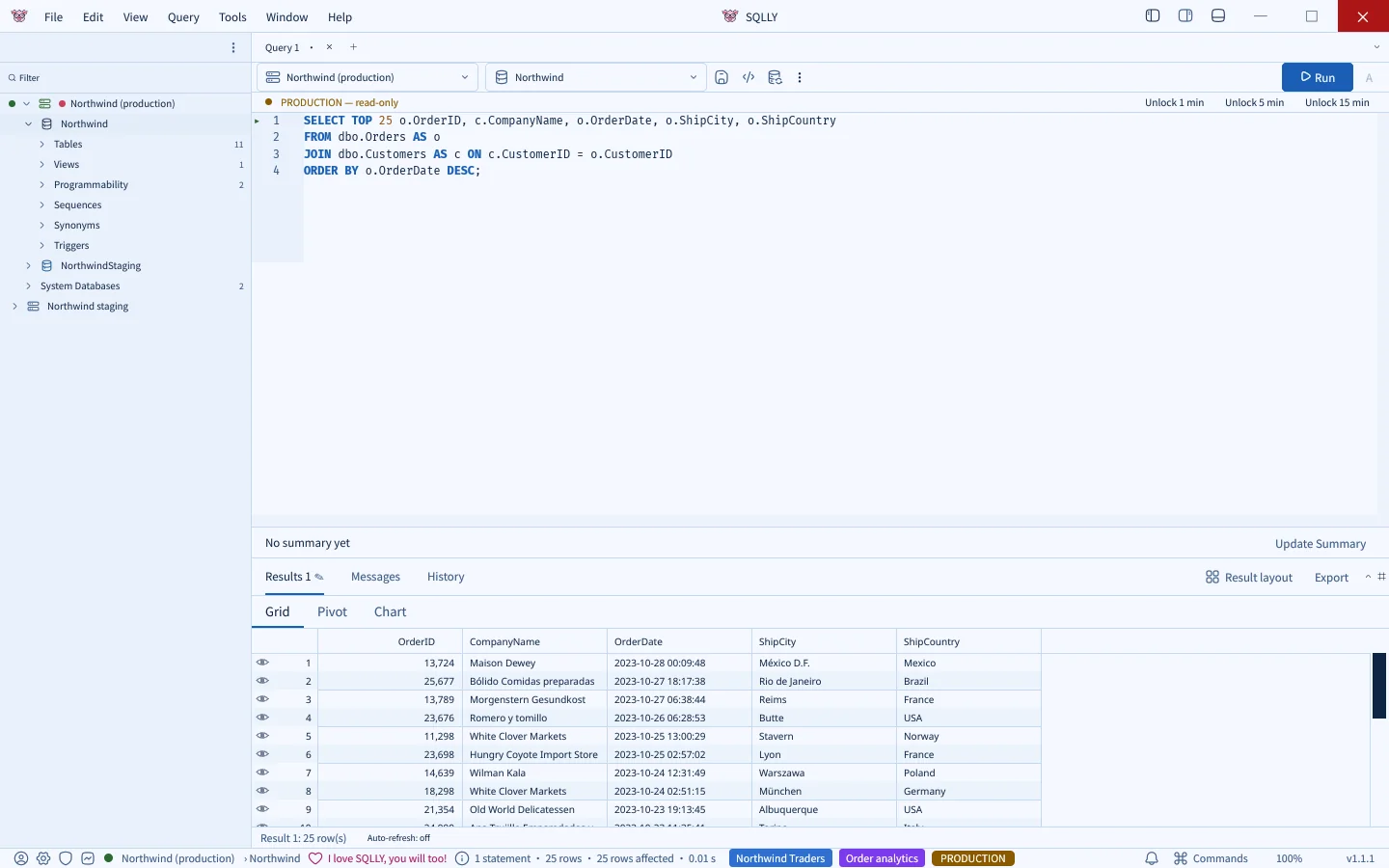
SQLly running in the browser through the bridge: the explorer shows the Northwind production and staging connections, a SELECT query against Orders and Customers is in the editor under a PRODUCTION read-only bar, and the results grid shows 25 rows
SQLly in the browser, talking to SQL Server through the bridge. The profile's labels show in the status bar, and the Production environment's safety rules apply: the editor is read-only until unlocked.

While SQLly is open, Status shows the seat in use:
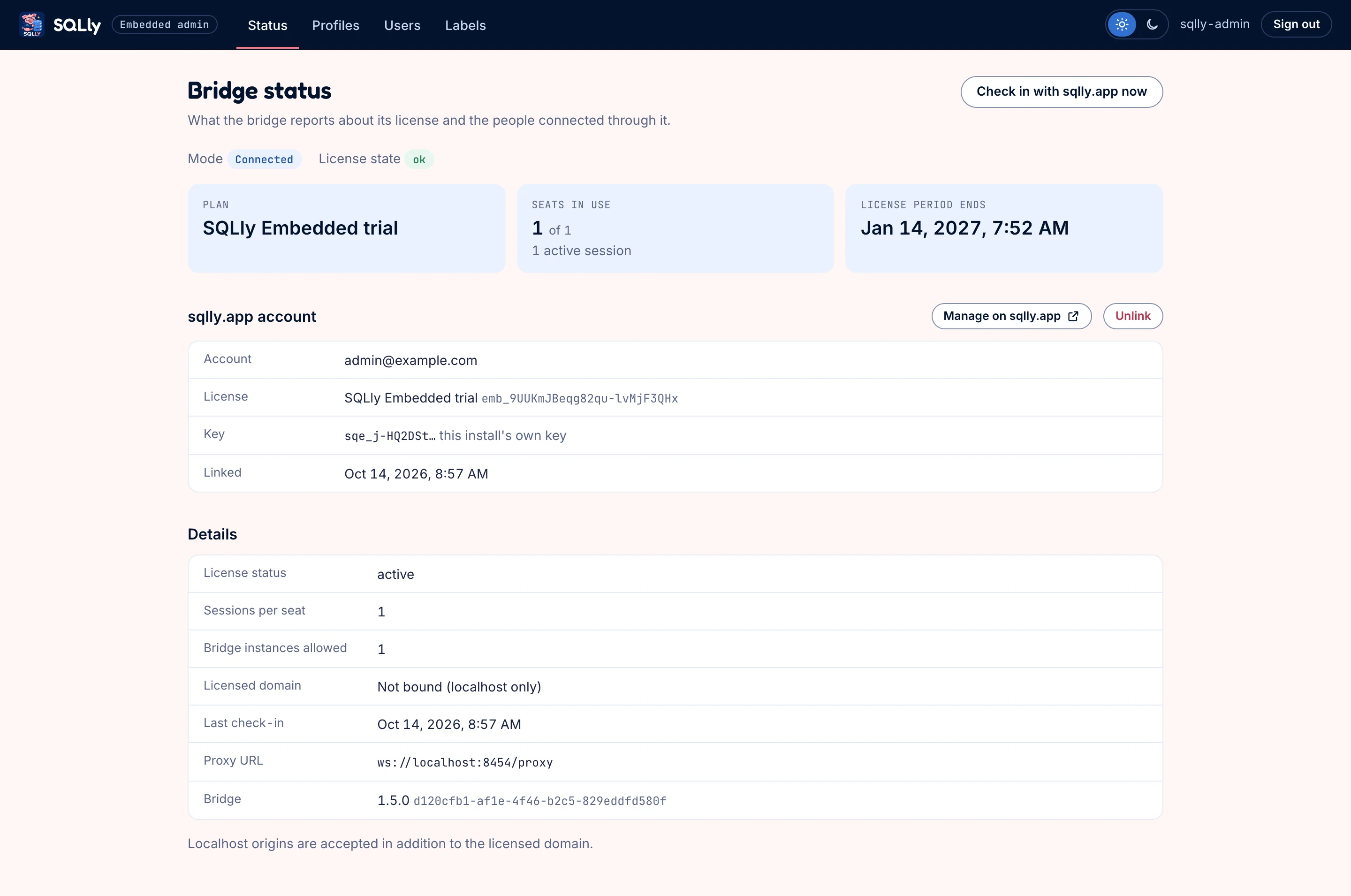
Bridge status page showing 1 of 1 seats in use and 1 active session
Seats are concurrent: this one frees the moment dana.analyst closes the tab and their token expires.

Reading the code

FileWhat to take from it
lib/bridge.jsA complete management API client: every call, error handling, timeouts. Copy it or port it.
lib/credentials.jsTurns form fields and shared labels into a sqlly-credentials document.
lib/sqllyapp.jsThe sqlly.app side of linking: create a link, poll for the key.
server.jsRouting. GET /app/ is the launch route; /admin/* is the admin side; /admin/link* is linking.
views/pages.jsThe HTML, including injectLaunch, which sets the two globals before boot.js.
test/node --test suites that run the app against a fake bridge. A good model for testing your own integration.

Ready to replace it? Build your own app walks through each of these jobs in your own stack.