 SQLly
SQLlySQL + Excel: computed columns for spreadsheet people
Type an Excel formula on any SQL result: colored references, running totals and dates, saved in the query and exported to Excel as live formulas.
The competitor watch for October 22 was about the results grid: twelve issues from people using DataGrip, Beekeeper Studio, HeidiSQL, DbGate and Azure Data Studio. Read them in a row and a pattern jumps out. Freeze a column. Start typing in a cell to edit it. Size the columns to fit. Color the cells by what's in them. One DataGrip ticket asking for that last one has been open since 2015. Almost every request in that batch was the same request underneath: make the grid work more like a spreadsheet.
So I decided to give business analysts what they all want: SQL + Excel.
The short version
Type an Excel formula, get a new column on any query result.
Right-click a column header, choose Add Computed Column…, and type the formula you would type in Excel. References are colored and the cells they read are outlined, as in Excel. The column appears at once, without running the query again, and the formula is saved in the query. Export to Excel and it arrives as a live Excel formula, with the pivot on a second sheet.
Why Excel, in a SQL client
Anything an Excel formula does can be done in SQL. A running total is SUM(Amount) OVER (ORDER BY InvoiceDate ROWS UNBOUNDED PRECEDING). A change from last month is Sales - LAG(Sales) OVER (ORDER BY Month). A safe margin is (Revenue - Cost) / NULLIF(Revenue, 0), and then a COALESCE around it so the empty ones don't vanish. All of that works. But you have to know how, and the spelling changes from SQL Server to PostgreSQL to MySQL.
Business analysts, accountants, and almost everyone in a white-collar job is at least basically competent with Excel. The people who know some SQL and are willing to use it probably know enough Excel to do a great deal, and may not know nearly as much SQL. They can get the rows out of the database. What comes next, the margin, the running total, the month-over-month change, they would do in a spreadsheet in thirty seconds. This feature is designed to help them: write the SQL you know, and do the rest in the language you already speak.
A formula bar over the grid
Right-click the header of the column the new one should follow and choose Add Computed Column…. A formula bar opens above the results: fx, a name, and the formula, already started with a reference to the column you clicked. Type, press Enter, and the column is there.
The one new thing is how you point at a cell. A result has column names, not letters, so where Excel says B7, SQLly says !Qty. The row before is !Qty[1], the first row is !Qty[$1], and a range is !Qty[2]:!Qty. Everything else is Excel: the same functions with the same arguments, the same operators, even the same quirks. -2^2 is 4 here too.
| Excel, on row 7 | SQLly |
|---|---|
=B7*C7 | =!Qty * !Price |
=D7-D6 | =!Sales - !Sales[1] |
=D7/D$2 | =!Sales / !Sales[$1] |
=SUM(D5:D7) | =SUM(!Sales[2]:!Sales) |
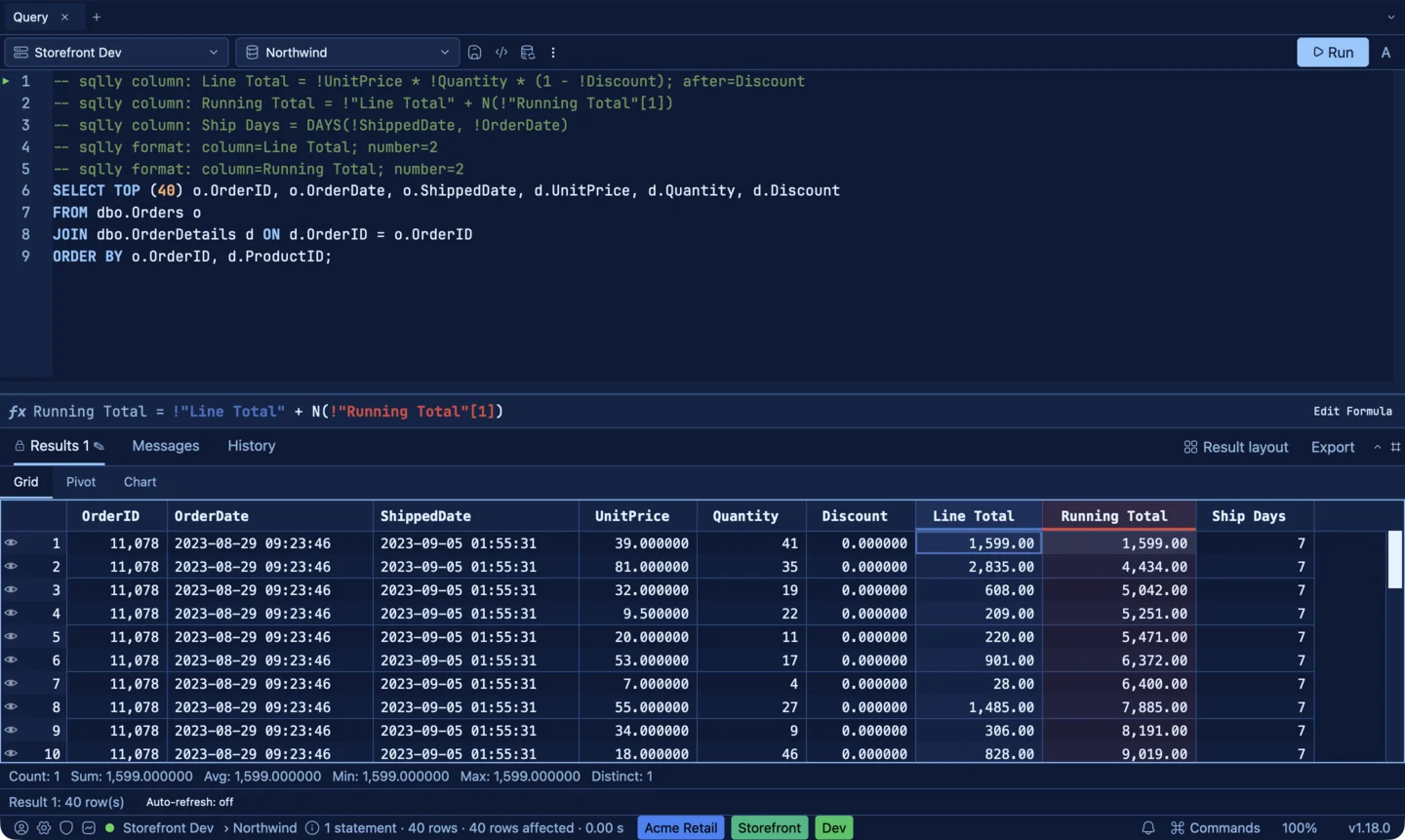
While you type, every reference is drawn in its own color, in Excel's order (blue, red, purple, green), and the grid outlines the cells each one reads in the same color for the selected row. !Sales[1] boxes the cell one row up. You can see that the formula reads what you meant before you press Enter, the way you check a formula in Excel.
![The formula bar over an order-lines result with =IF(!Quantity >= 20, !"Line Total" / !"Running Total"[$1], 0) typed; Quantity is blue, Line Total red and Running Total purple, and the grid outlines the matching cells in the same colors](/assets/screenshots/blog/sql-excel-formula-bar.webp)
Formulas you already know
-- sqlly column: Margin % = IF(!Revenue = 0, 0, (!Revenue - !Cost) / !Revenue); after=Cost
-- sqlly column: Running Total = !Amount + N(!"Running Total"[1])
-- sqlly column: Growth % = IFERROR(!Sales / !Sales[1] - 1, 0)
-- sqlly column: Rolling 3 = SUM(!Sales[2]:!Sales)
-- sqlly column: Days to Ship = !ShippedDate - !OrderDate
-- sqlly column: Due = EOMONTH(!InvoiceDate, 1)
-- sqlly column: Label = !Customer & ": " & TEXT(!Amount, "$#,##0.00")
-- sqlly column: Contact = COALESCE(!Email, !Phone, "none on file")
IF, IFERROR, SUM, ROUND, TEXT, EOMONTH, NETWORKDAYS, DATEDIF, TEXTJOIN and about a hundred more work as they do in Excel. Database dates are real dates, so subtracting two gives days. An empty value is an empty cell. Dividing by zero gives #DIV/0! in that cell, not an error for the whole query. The one addition is COALESCE, borrowed from SQL, because it's too useful to leave out.
A running total works because a computed column can read its own value on the row before. And a -- sqlly set rate = 0.0825 line in the query can be read in a formula as @rate, so one number drives the SQL and the math.
It's saved in the query
When you apply a formula, SQLly writes it into the query as one comment line, -- sqlly column: Running Total = !Amount + N(!"Running Total"[1]). The database ignores it. SQLly reads it on every run, so the column comes back tomorrow, in the saved .sql file, and for the colleague you send it to. Click a computed cell and the formula bar shows its formula, with an Edit Formula button. Edit it and the line in the query is updated in place. ⌘Z undoes it.
Computed columns behave like any other column: sort them, format them, color them with conditional formatting, pivot on them. The lock writes them into the query along with the rest of the grid.
And then it goes to Excel
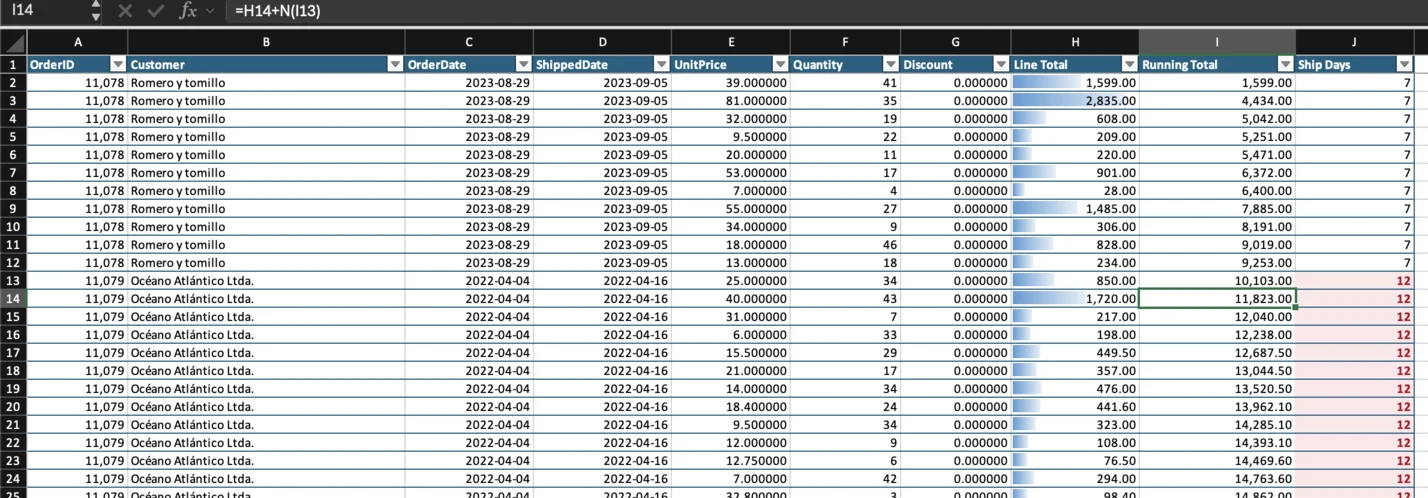
Sooner or later the result goes to Excel anyway, so the export had to be good. Export to Excel, or click Open in Spreadsheet, and you get the grid you were looking at, not a raw dump. The column order you dragged, your widths, hidden columns, frozen panes, number and date formats, and conditional formatting are all there as native Excel formatting. Numbers are numbers and dates are dates.
Computed columns arrive as live formulas. !Qty * !Price on the seventh row of the sheet is =B7*C7. !Sales[1] is the row above, !Sales[$1] is D$2, and @rate becomes a named value in the workbook. Change a number in Excel and the column recalculates, exactly as it did in SQLly. The values are filled in too, so the file reads correctly before Excel recalculates anything.
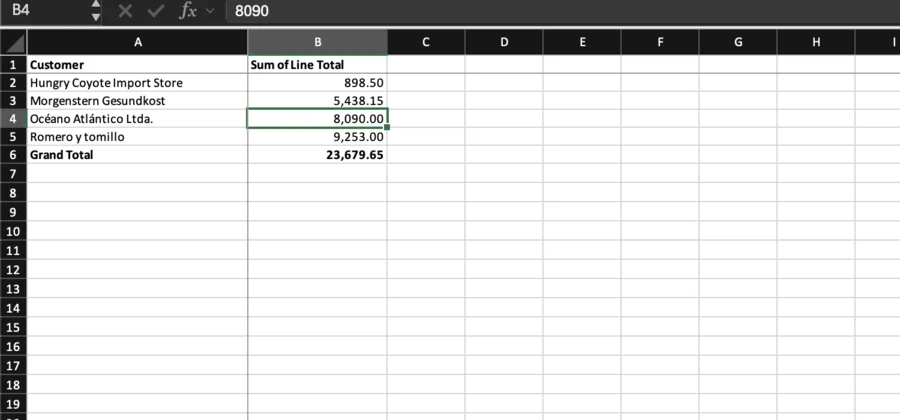
If the result has a pivot, the workbook gets a second sheet with the pivot exactly as it was on screen: collapsed groups, sort, filters, subtotals and grand totals, row labels indented, totals in bold. It's ready to paste into the deck.
What it isn't
It isn't a spreadsheet. Every row uses the same formula, like a calculated column in an Excel table, and you can't override one cell. Rows are numbered in the order the query returned them, so put an ORDER BY on anything with a running total or a change from last month. And for a result too large to keep in memory, formulas see the rows a page at a time, so a running total over millions of rows still belongs in SQL.
For everything else, there's the formula you already know. The computed columns guide walks through the formula bar, the reference lists every function and operator, and Excel export covers the workbook in detail. Download SQLly, run a query, and right-click a header.